Create a Product Listing Visual
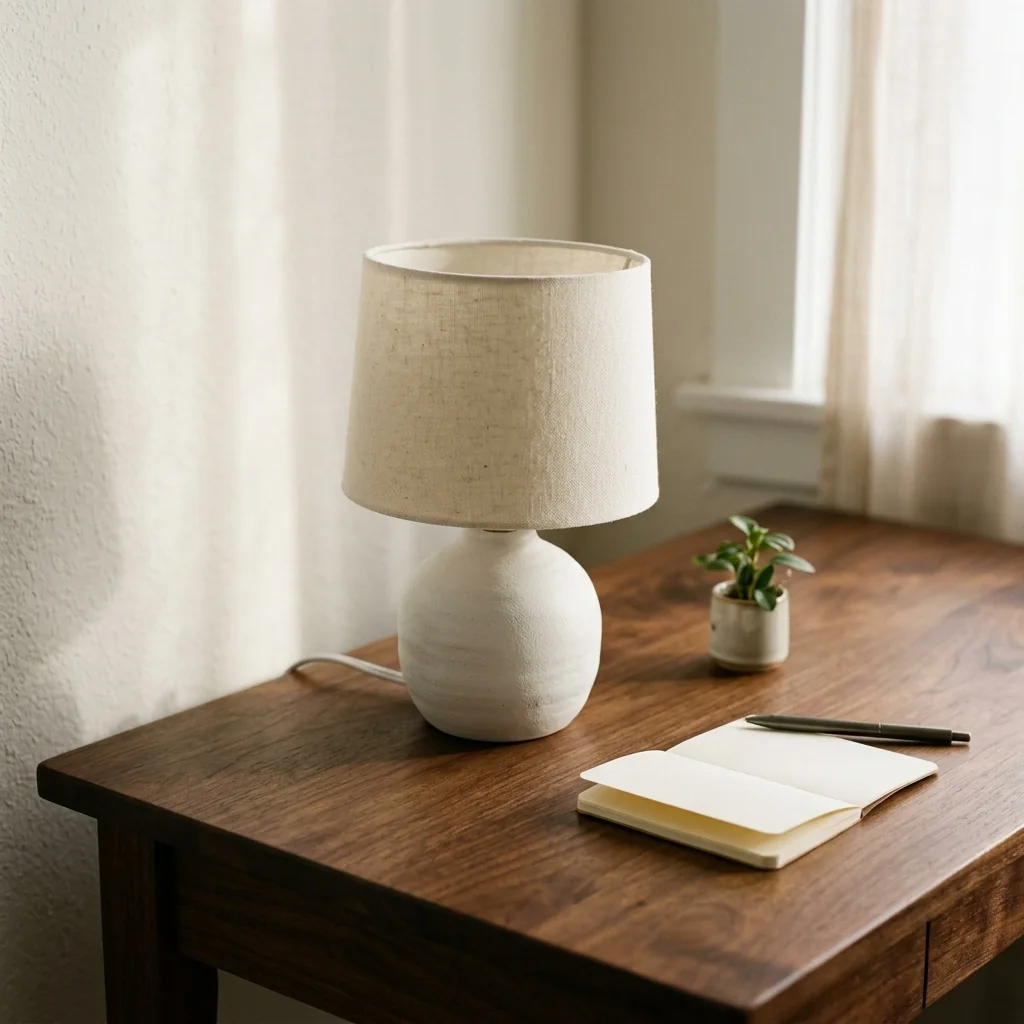
For a shop listing or product concept: create a square tabletop scene with soft light and room around the subject.
Prompt: White ceramic lamp on a walnut desk in soft morning light.
DeftImage
Use text to image AI to create photos, illustrations, and product concepts from a prompt. Download your results or continue editing.
Eligible visitors can try one watermarked Studio 1K preview across the image tools. Complete the human verification to preview without signing in. To download the original without a watermark, sign in and unlock it for 3 credits.
Sign in to generate a new image without a watermark. Prices start at 2 credits per image and depend on the model and resolution. Credit packs start at $4.90 for 120 credits. Pricing
Text to image begins with an idea expressed in words. You do not need to upload a photo or find a reference before starting. Describe the subject, setting, visual style, lighting, and composition, then choose the output settings for the image you want to create. The model builds a new image from that description, so this mode suits a starting point that exists in your imagination rather than in an existing picture.
For example, a small business can explore a product concept on a neutral background, a musician can plan a fictional portrait for a poster, or a writer can develop an illustration for a story. You can describe a square composition for a product visual or a wider scene for a banner. Clear details give the model direction, while each result remains a new interpretation that you should review before using. Use these drafts to compare directions before committing to a layout.
Image to image starts with an uploaded reference and a written instruction. Instead of describing an entirely new scene, explain how the existing image should change: try another visual style, replace the background, adjust the lighting, or refine a particular detail. Also identify the subject, composition, and features you want to preserve. The reference guides the change, but faces, lettering, and small structures can still differ, so comparing the result with the original is useful.
Both modes are available: start from words here, or bring an existing reference to image to image on the homepage.
Explore three ideas for a useful finished image. Try loads the prompt and its aspect ratio; you choose when to generate. Results will vary.
For a shop listing or product concept: create a square tabletop scene with soft light and room around the subject.
Prompt: White ceramic lamp on a walnut desk in soft morning light.
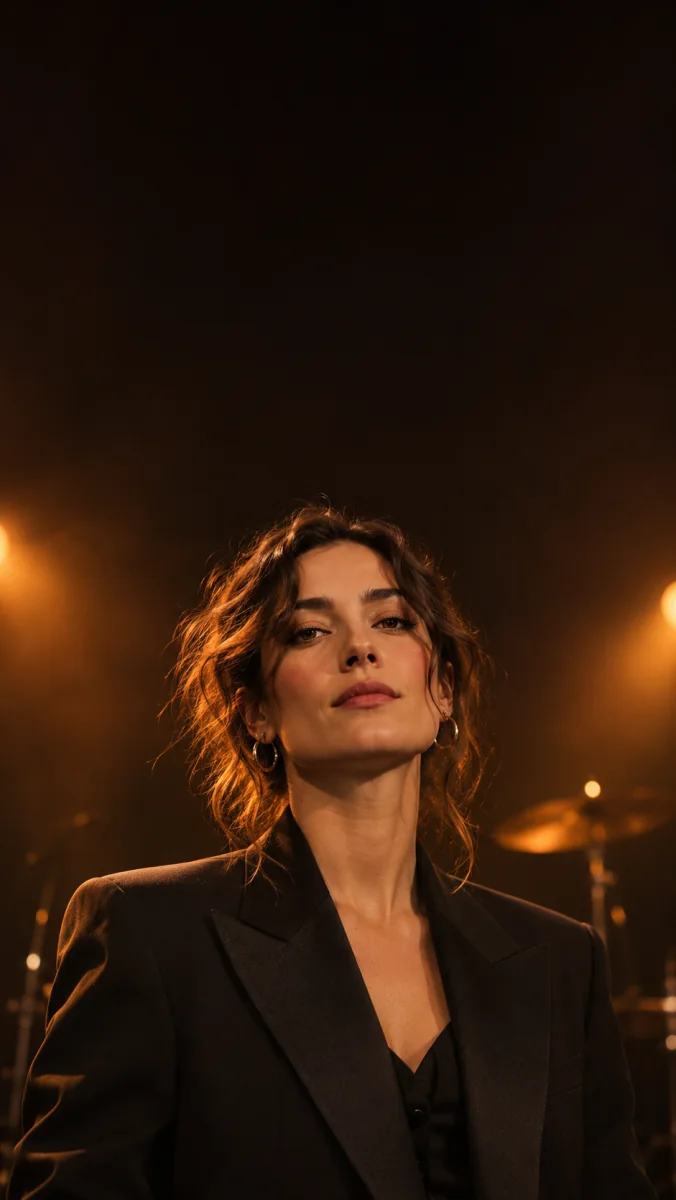
For a music announcement: create a fictional 9:16 portrait with clear space above for titles you add later.
Prompt: Black-suit musician portrait in amber stage light, with space above.
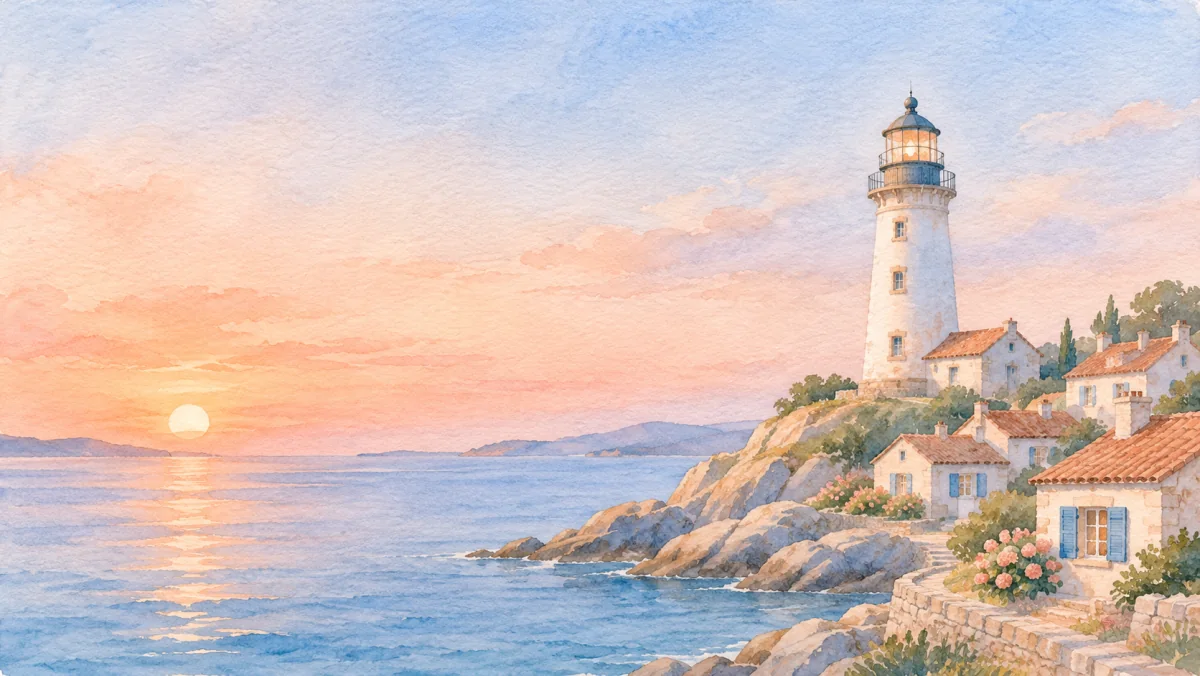
For a story cover or article banner: create a wide watercolor coastal scene with a quiet blue-and-peach palette.
Prompt: Watercolor coastal village and lighthouse at sunrise, blue and peach.
Build a clear prompt, choose a format for its use, then review and refine the image.
White ceramic lamp on a walnut desk in soft morning light.
Name the subject first, then add the style, lighting, and composition. A specific product, soft window light, and clear space around it give the model a useful direction. Write one coherent description instead of a list of conflicting styles. Include material and color when they matter, then describe where the subject sits in the frame. For a product concept, specify the surface beneath it and whether you need clean space beside the object for a later page layout.
Choose a shape for your intended use. These suggestions do not change your settings.
When previews are enabled, pass the human check to try one Studio 1K watermarked image without signing in; Image to Image and Text to Image share this one preview. For paid generation, choose a model, aspect ratio, resolution, and 1–4 outputs, then sign in, review the displayed total credits, and submit when ready. Decide the final placement before generating: a square can fit a product grid, a tall frame can leave room above a portrait, and a wide frame can support a story banner. Ask for that space in the prompt so the composition matches the intended format. Check whether your subject needs additional breathing room.
Check the results and download your favorites. Continue editing opens the generated image in Image to image for a new instruction. Inspect the complete frame as well as small details. Look at product edges, hands, repeated patterns, and any lettering the model introduced. If the composition works but one detail needs attention, carry that result forward and describe the specific adjustment rather than starting an unrelated scene.
View private results and your text-to-image history in your account. Results are kept for 7 days after completion. Download images you want to keep, or delete results from My images. Keep a local copy of selected results with your project files rather than relying on history as an archive. Downloaded files let you organize approved versions alongside your other materials and return to them later.
Bring a generated result into Image to image to describe another change, without downloading and uploading it yourself. The workspace shows the credits for the new edit before you submit. Work through changes one at a time, such as warming the light, simplifying a backdrop, or refining a fabric texture. Name the features that should remain, then compare the new result before deciding whether another adjustment is useful.
Each image uses the same model and resolution credit price as Image to image. A confirmed technical failure returns the failed image’s credits; completed images remain charged. Changing the model, resolution, or output count can change the displayed total. Review that amount after changing your selection. Downloading an existing result does not start another generation, while requesting a fresh variation creates a new paid task.
| Editing option | 1K | 2K | 4K |
|---|---|---|---|
| Studio | 3 | 3 | 3 |
| Pro Edit | 6 | 6 | 8 |
| GPT Edit | 2 | — | — |
Total credits = number of outputs (1–4) × credits per result.
Studio costs the same at 1K, 2K and 4K. GPT Edit is available at 1K only.
A text to image AI generator creates a new image from a written description. It interprets the subject, setting, and style in your prompt without requiring an uploaded photo. Results can vary.
Explore photo-style scenes, illustrations, product concepts, and poster ideas. Describe the composition and mood you want, then check faces, text, and small details before using or sharing a result. You may use your results for personal, social, and your own commercial purposes, including your shop, product listings, or campaigns, provided you have rights to the inputs and comply with third-party rights and applicable model-provider terms. We do not guarantee exclusive copyright or freedom from infringement.
Name the main subject, setting, style, lighting, and composition. For example: a matte ceramic vase on a beige pedestal, soft window light, minimal product photography, generous negative space. Start with one clear idea, then revise the prompt after reviewing a result.
No. Text to Image uses your required text prompt. Use Image to image when you want to upload references or edit an existing image.
Try 1:1 for a square product image, 9:16 for a vertical poster, or 16:9 for a landscape illustration. These are use suggestions, not requirements. Choose the ratio for your layout; selecting an example prompt applies that example’s ratio.
Choose 1–4 outputs. The workspace shows the total credits for the selected model, resolution, and image count before you submit. Each output can differ; a confirmed technical failure refunds only the failed image.
Start with the default Studio option to explore your prompt. Studio and Pro Edit support 1K, 2K and 4K here; GPT Edit is another option at 1K. Google positions Nano Banana Pro for complex instructions, text and precise design control, which can help you decide what to try when those needs matter. This is official positioning, not a text-to-image advantage established by our tests. We have not established a text-to-image quality ranking among these models. Compare a small number of results using the same prompt and settings, review the details that matter for your use, and check the current credit table before submitting.
When previews are enabled, pass the human check for one free Studio 1K image with a watermark, without signing in. Image to Image and Text to Image share this one preview; signing in does not add another. Sign in and use 3 credits to unlock the saved image without the DeftImage watermark, without regenerating it. The preview unlock is not sold separately. See the pricing page for current credit packs. Further generations use credits. Sign-up does not add free credits. Buying credits does not unlock or generate automatically. The workspace shows the total before confirmation. Other text-to-image generations require an account and sufficient credits. The workspace displays the total cost for your model, resolution, and output count before you submit.
Yes. Continue editing prepares the selected result in Image to image without a charge. Describe the next change, review the displayed credits, and submit a separate new edit when ready. Each new generation uses credits.
Check the details before using the result. AI may change identity or invent missing detail.